An entry that says “worked on the rental, 3 hours” fails twice. It does not say what the work was, so nobody can tell whether it counts, and it cannot be grouped with the other hours of the same kind, so nobody can see the pattern. A category fixes both. It is one word on the entry, but it is the word your CPA scans for and the word an examiner sorts by. This post is about which labels to use, which activities do not count no matter how you label them, and how categories work in REPSLog.
What the label has to do
The regulations do not prescribe categories; they prescribe substance. Hours count when they are work in a real property trade or business (for REPS) or participation in the operations of the activity (for material participation). Investor-level work does not count unless you are involved in day-to-day management, and the usual exclusions are education, market research and financing. The 50 examples post sorts common tasks into count and does-not-count; property management gets its own treatment. A good category scheme makes the counting hours obvious and keeps the doubtful ones visible rather than hidden inside a total.
The built-in categories
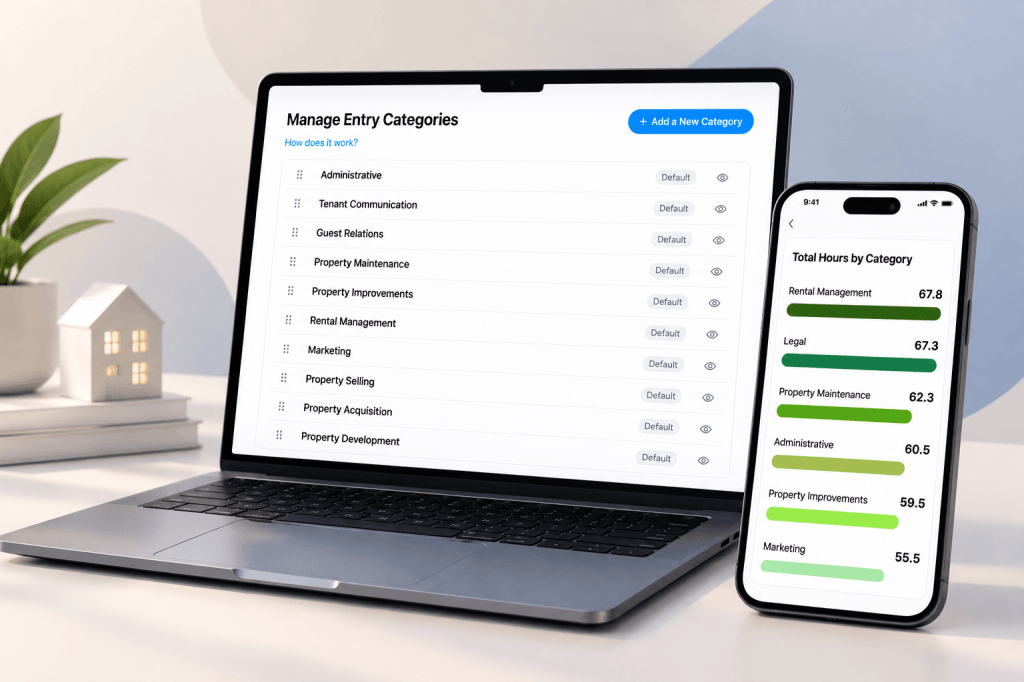
REPSLog ships with 13: Administrative, Tenant Communication, Guest Relations, Property Maintenance, Property Improvements, Rental Management, Marketing, Property Selling, Property Acquisition, Property Development, Operations, Legal and Other. They map onto the kinds of work the regulations describe (management, operations, development, acquisition, marketing) so that a breakdown by category reads like a description of a real estate business. Guest Relations is there for short-term rental hosts; the STR view of the dashboard breaks STR hours down by category separately from LTR.
You cannot rename or delete a built-in category, but you can hide any of them so they stay out of your pickers, and hiding never touches the entries that already use it.
Adding your own
Open Settings, Manage Entry Categories, + Add a New Category. One field, one button. Names must be unique. Your categories carry a Custom badge, appear at the top of the list and can be renamed later. Drag to reorder: the order you set is the order the Category picker uses on the entry form, so put your most common work at the top. Deleting a custom category keeps every entry that used it, with the label cleared to None.
Two habits pay off. Keep the list short enough that you never hesitate over which one to pick, and split out any category you might need to defend separately. If you do a lot of renovation, a separate Renovation label lets you and your CPA see those hours at once; the construction hours post explains why they get looked at.
Where the label goes next
The category follows the hour all the way to your tax file. On the dashboard, Total Hours by Category is one of the two stats cards. In the entry log, the Filters sheet lets you tick categories (plus “none” for uncategorized entries) alongside a date range, properties and participants, with a banner showing total hours and entry count for the selection, which is the fastest way to answer “how many hours of tenant work at the duplex last quarter”. Every export, CSV and PDF, includes a Category column, and the Schedule E summary shows hours by category per property.
How to set up your categories
- Open Settings, then Manage Entry Categories.
- Hide the built-in categories you will never use (the eye button).
- Tap + Add a New Category for anything you want to defend separately, name it, tap Add Category.
- Drag the rows so your most common work is at the top.
- On each entry, pick the category. It is optional, but an entry without one shows None in the log and a blank cell in the export.
Screenshots: How to Manage Your Categories and Participants and How to Filter Your Entry Log in REPSLog.
Good to know
- The 13 built-in categories are free on every plan. Plan limits count only custom ones: Free 1, Starter 4, Premium unlimited.
- Works on iPhone, Android and the web app, one list synced to your account.
- Category is optional on an entry; an entry with no category still counts its hours.
- Hiding is reversible and lossless. Deleting is not undoable, but the entries survive with the category cleared.
- No AI setting affects categories. Names are stored with your log and included in your exports.
Frequently asked questions
Does the IRS require categories?
No. It requires that the hours be the kind that count. Categories are how you and your CPA show that at a glance, and how an examiner sorts your log.
Which categories should I add?
Only ones you would want to see as their own line: renovation, a specific property’s operations, HOA work. If you would not defend it separately, a built-in one is fine.
Can I change a category after the fact?
Yes. Edit the entry and pick another. Renaming a custom category renames it on every entry that uses it.
What about hours that do not count, like education?
Log them with an honest category so they are visible, or keep them out of the log. Ask your CPA which they prefer; do not disguise them under Administrative.
Do short-term rentals use the same categories?
Yes. Guest Relations is built in, and the STR view breaks STR hours down by category on its own.
Related reading
- Does property management count toward REPS?
- How to keep a contemporaneous log that survives an IRS audit
- Example log for REPS and STR hour tracking
Try REPSLog free for 14 days on iPhone, Android or the web app.
This article is general information, not tax advice. Which activities count is a question for your CPA.