The weakest number in most REPS logs is the duration. “About two hours” written at the end of the day is an estimate, and a log full of round estimates is what makes an examiner reach for the calendar and the invoices to check. Work that you can time, you should time: the walkthrough with the contractor, the afternoon at the property, the drive that may or may not count. This post is about the timer built into REPSLog, and the shortcuts that make starting it a two-second job.
Why measured beats estimated
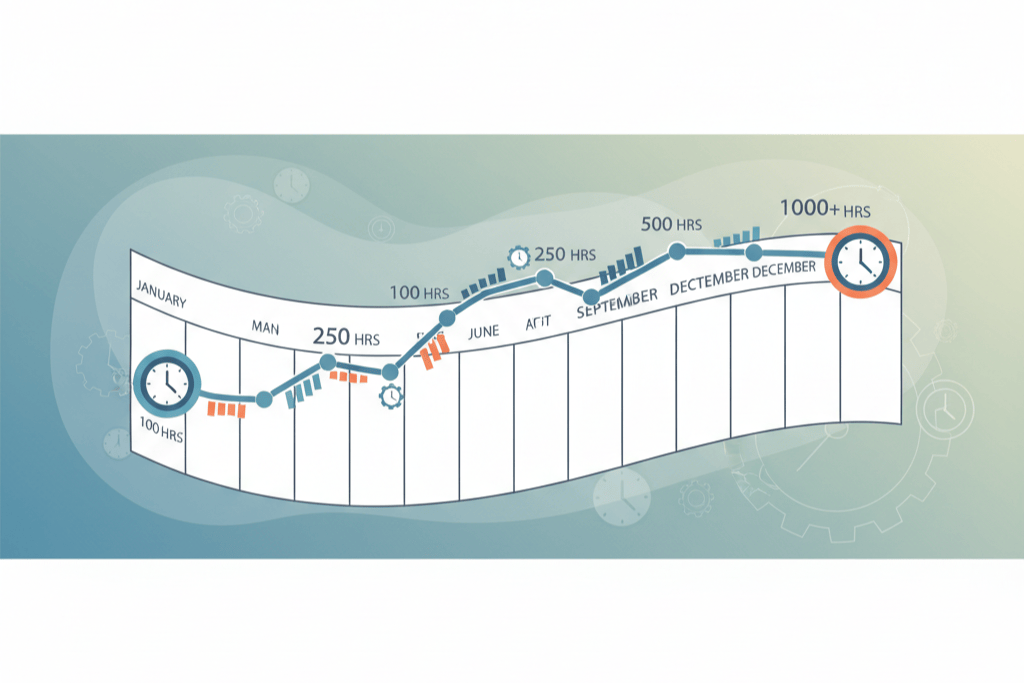
Durations that are measured have two things estimates lack: they are specific (1 hour 47 minutes, not “about two hours”) and they were captured while the work was happening, which is the definition of contemporaneous. For construction and renovation hours, where days can be long and the hours are large, the construction hours post makes the same point: the bigger the number, the more it needs to be measured. Whether a given activity counts is a separate question for your CPA; a measured duration is simply harder to argue with.
The built-in timer
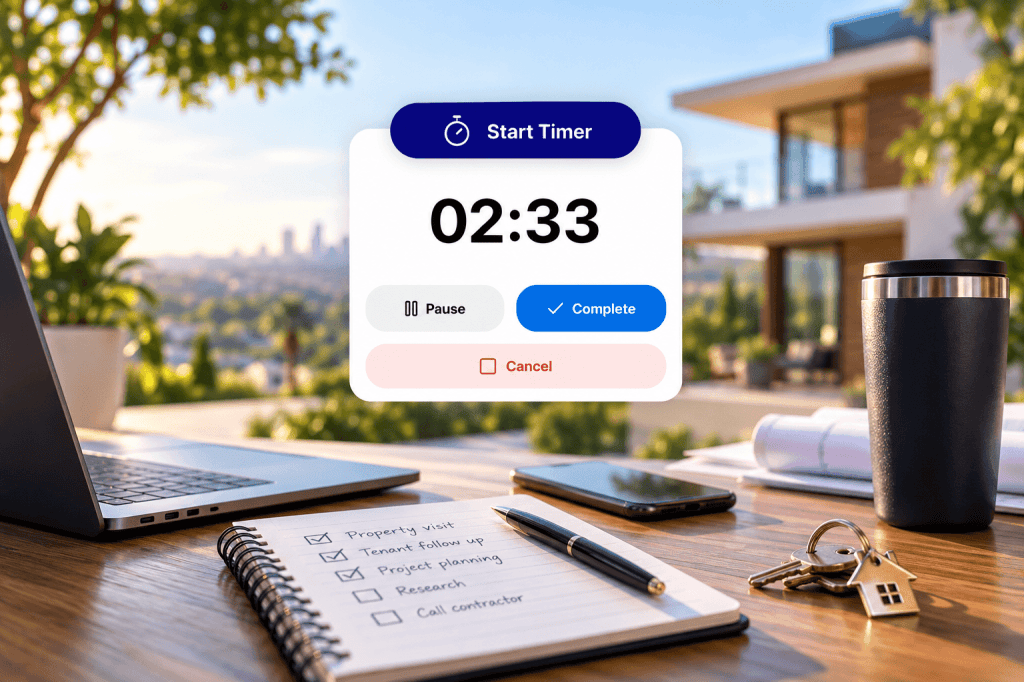
Tap Start Timer on the Overview and a full-screen flip clock opens with one button, Start. Running, it shows Pause, Complete and Cancel. Cancel asks first, so a stray tap cannot lose your time. Back on the Overview, the button reads Timer Running 12:34 or Timer Paused 12:34 while a timer is active. The timer keeps counting in the background while you use other apps or lock the phone, and its state is saved on the device, so it survives closing the app and restarting the phone. Pause stops the clock; Resume continues from where it stopped.
On iPhone, a running timer appears as a Live Activity on the lock screen and in the Dynamic Island, titled REPSLog Timer, with the elapsed time ticking. Two buttons on the activity pause or resume and complete the timer without opening the app. On Android, the running timer is a persistent notification with Pause or Resume and Done actions.
Complete rounds the elapsed time up to the next whole minute and opens Add a New Entry with Hours and Minutes already filled in and a Timed badge next to them. The badge means the duration is locked: Autofill with AI will not replace it, and you can still edit it by hand, which removes the badge. Describe the work, pick the property, save. Full detail on the timer page.
Quick actions from the app icon
Press and hold the REPSLog icon on your home screen and a short menu opens: Add a New Entry, Start Timer, Customer Service, and a Special offer item for accounts without a subscription. Start Timer starts the clock the moment the app opens, so you do not have to tap Start once you are in. While a timer is running or paused, that item becomes End Timer, which completes it and opens the entry form with the recorded minutes filled in. There is never a paywall on End Timer: the time already counted is yours.
For a host walking into a turnover, that is the whole workflow: long-press, Start Timer, pocket the phone, clean, long-press, End Timer, “Turnover clean and restock at Beach House”, pick the listing, save. The entry lands on that property’s STR counter with a measured duration.
How to time an activity
- Tap Start Timer on the Overview, or long-press the app icon and choose Start Timer.
- Do the work. Pause from the lock screen (iPhone) or the notification (Android) if you stop.
- Tap Complete on the timer, the lock screen or the notification. If the app was closed, the entry form opens the next time you open REPSLog.
- Describe the work, pick the property and category, tap Add Entry. The Timed badge marks the duration as measured.
Screenshots: How to use the REPSLog Timer for Live REPS Tracking and How to Use Quick Actions from the REPSLog App Icon.
Good to know
- The timer and quick actions are on every plan, including Free. Read-only team members do not see them.
- iPhone and Android only. The web app has no timer; log the duration by hand there.
- Lock-screen controls are iPhone only (Live Activity and Dynamic Island). Android gets the persistent notification, which needs notification permission; the Timer screen offers to request it.
- One timer at a time. A timer that reaches 24 hours is cancelled automatically and its time is discarded, so complete it before then.
- The timer runs on the device, needs no connection until you save, and sends nothing to any AI provider.
- Quick actions need build 198 or later. The Add a New Entry item follows your plan’s entry limit; Start Timer, End Timer and Customer Service are never paywalled.
Frequently asked questions
Does REPSLog have a timer?
Yes, on iPhone and Android. It runs in the background, shows on the lock screen or as a notification, and turns the elapsed time into an entry.
What if I forget to stop it?
Edit the duration on the entry form before saving; that removes the Timed badge. A timer left running 24 hours is cancelled automatically.
Does the timer pick the property?
No. You choose the property on the entry form, which is how an STR host with several listings routes the hours to the right one.
Can I start the timer without opening the app?
Yes. Long-press the app icon and choose Start Timer. End Timer appears in the same menu while it runs.
Is the timer available on the web?
No. The web app has + Add a New Entry in the header instead; enter the duration by hand.
Related reading
- Does travel time to properties count toward REPS hours?
- Construction hours for REPS
- The 5 best methods for tracking your REPS hours
Try REPSLog free for 14 days on iPhone, Android or the web app.
This article is general information, not tax advice. Whether an activity counts is a question for your CPA.