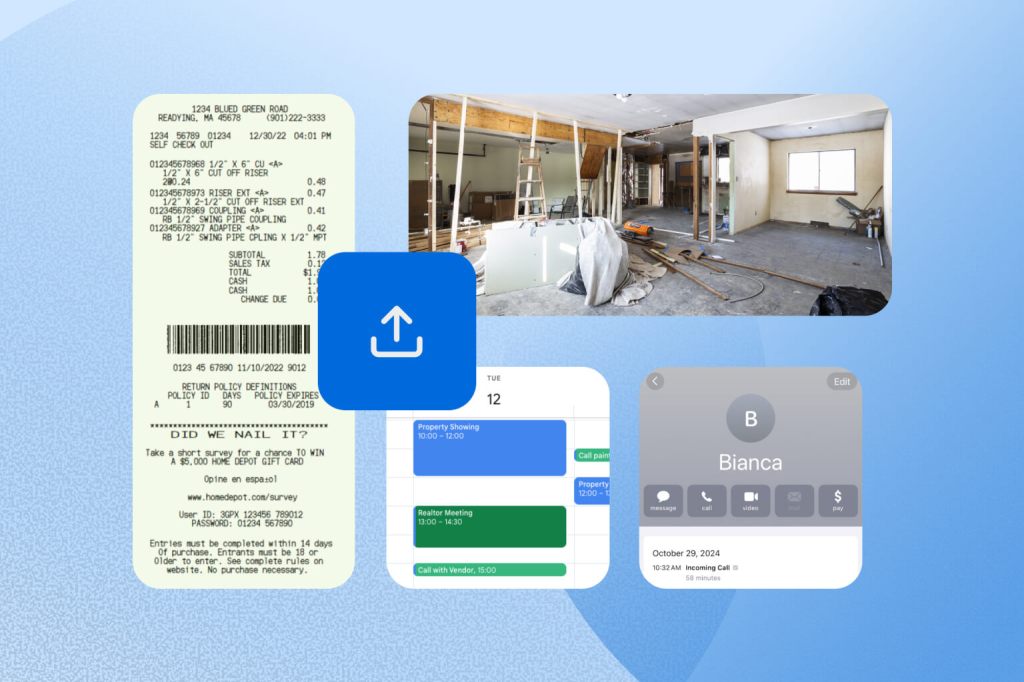
An hours log on its own is a claim. What turns it into a record is corroboration: the Home Depot receipt from the day you say you fixed the fence, the plumber’s invoice behind the two hours of coordination, the before-and-after photos of the turnover. Examiners cross-reference. If your entry says you spent Saturday morning on a repair and the receipt for the parts is dated that Saturday, the entry is hard to argue with. This post covers what to keep, how to attach it to the entry it supports in REPSLog, and what the AI does with it.
What corroboration looks like
The IRS’s own audit guidance for passive activity losses tells examiners to test a log against outside records. The REPS audit guide lists what gets requested: calendar entries, emails to tenants, contractor invoices, receipts, travel records. And the photo evidence post makes an important point: a photo proves a place and a moment, not a duration. Evidence supports an entry; it does not replace one. Which is why REPSLog attaches files to entries rather than treating a receipt as an hour.
Attaching evidence to an entry
Every entry form has an Add Supporting Documents section. On iPhone and Android, Upload Image/Document opens a sheet with three choices: Upload Photos (several at a time), Upload Documents, and Take Photo. On the web app the button opens your browser’s file picker.
Supported files are images (JPEG, PNG, GIF, and HEIC photos from an iPhone, converted to JPEG), PDF, Word and Excel, up to 10 MB each. Photos are scaled to at most 1024 pixels on the longest side before upload, which keeps a receipt legible and uploads fast. Each attachment appears as a tile on the entry; tap an image to open it full screen, a PDF to open it in the viewer. Every tile has a note icon where you can write up to 1,000 characters describing the file, on every plan.
In the entry log, entries that carry files show a paperclip icon. When you delete an entry, its attachments go with it. Free and Starter allow one attachment per entry; Premium is unlimited. Details are on the Evidence Attachments page.
Letting AI read the receipt
On Premium, the note sheet for a photo or PDF has a Generate AI description button. Tap it and the note fills in. For a document with text (a receipt, invoice, estimate, lease, permit, inspection report, warranty), it names the kind of document, the vendor, the total and currency, the date, and the notable items, but only when they are legible. For a photograph of a scene (work in progress, a finished repair, damage, materials), it describes what is visible. If nothing legible is in the file, it says so.
It is instructed never to guess a value it cannot read, to label dates as what they are (an expiry date is not an issue date), to summarize rather than transcribe, and never to copy card digits, approval codes or barcodes. The result is an ordinary note you can edit before saving. PDFs are read in full, up to 50 pages, so a total on the last page is still picked up. There is a daily allowance of 60 AI descriptions per account; notes you type yourself are never capped.
This is not receipt scanning in the expense-app sense. The entry itself comes from you: the time, the property and who did the work are yours to state, and the receipt is the evidence attached to them. REPSLog never turns a photo into an entry on its own. The full behaviour is on the AI Receipt and Document Reading page.
Finding it again
Every description feeds Smart Search, so an invoice you attached in March is findable in April by typing “plumber”, even if the word never appeared in the entry’s description. When your CPA asks for everything to do with the roof, or an examiner asks about a specific vendor, the search covers what is inside the receipts as well as what you typed.
What ends up in the export
The CPA-ready export is a ZIP with your CSV and PDF reports plus a media folder holding every attached file, when you tick the attachments box. The CSV pairs each file name with its note, and the PDF report’s Files column shows each file name followed by its note. The evidence and the entry it supports travel together.
How to attach and describe a receipt
- Open the entry (new or existing) and scroll to Add Supporting Documents.
- Tap Upload Image/Document, then Take Photo or Upload Photos or Upload Documents. On the web, pick the file.
- Tap the note icon on the tile. Type a note, or on Premium tap Generate AI description.
- Read the note, correct anything, tap Save.
- Save the entry.
Screenshots are in the Help Center article How to Add Notes and AI Descriptions to Your Attachments.
Good to know
- Attachments and hand-typed notes are on every plan. AI descriptions and Smart Search are Premium.
- Privacy: attached files are stored in your account and are not read by any AI unless you tap Generate AI description on a file or turn on Smart Search Attachments in Settings, AI and Privacy. Turn that switch off and the button disappears; descriptions stop being used straight away and are deleted within 31 days.
- Password-protected PDFs are refused. Word and Excel files get hand-typed notes.
- Read-only team members can view attachments and notes but cannot add, delete or generate them.
- Duplicating an entry does not copy its attachments.
Frequently asked questions
Does the IRS require receipts for REPS hours?
Hours are established by any reasonable means, and corroborating records make a log credible. Receipts, invoices and photos dated to the work are the usual corroboration. Ask your CPA what to keep for your situation.
Can REPSLog create an entry from a receipt?
No. A receipt records a purchase, not hours. You log the entry; the receipt is attached as evidence and described.
What file types can I attach?
JPEG, PNG, GIF and HEIC images, PDF, Word and Excel, up to 10 MB each.
Is my receipt sent to an AI?
Only when you tap Generate AI description, and only after you have allowed your files to be read in Settings, AI and Privacy.
Will my CPA get the files?
Yes, if you tick Include supporting evidence attachments when exporting. They arrive in a media folder inside the ZIP, and each note is in the CSV.
Related reading
- Example log for REPS and STR hour tracking, plus what the IRS looks for
- What investors need to know from the IRS passive activity loss audit guide
- Tax Court case study: Hairston
Try REPSLog free for 14 days on iPhone, Android or the web app.
This article is general information, not tax advice. Ask your CPA what records to keep for your properties.