Ask any CPA who has defended a Real Estate Professional Status claim what sinks them, and the answer is rarely the number of hours. It is the log. Hours reconstructed at year end from bank statements and memory are what examiners challenge; hours written down the day they happened are what survives. The catch is that most real estate work happens away from a desk: a call with a contractor in the car, a 20-minute stop for supplies, a turnover check between guests. Voice Logging in REPSLog exists for exactly those moments.
What “contemporaneous” actually requires
The regulations let you establish participation by any reasonable means, but Tax Court cases have drawn a clear line between logs kept as you go and logs assembled after the fact. The contemporaneous log post walks through what that looks like in practice. The short version: each entry needs what you did, how long it took, which property, when, and who did it, and it needs to have been recorded close to the event. Dictating an entry takes as long as saying the sentence, so it gets made while the details are fresh.
What Voice Logging does
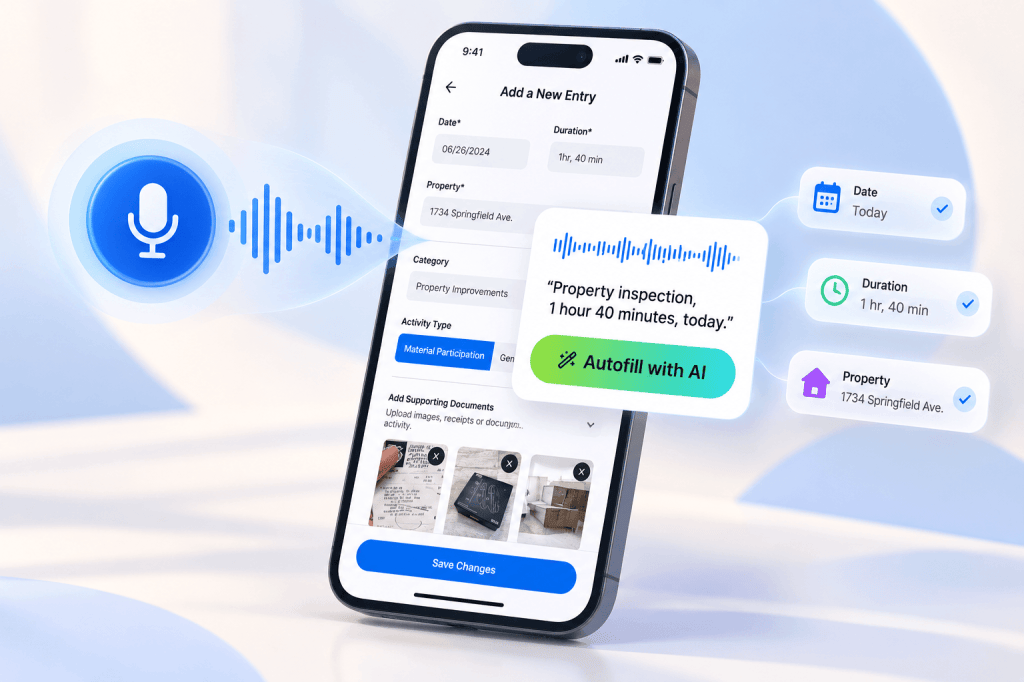
On the Add a New Entry form, the Services Performed field has a mic icon. Tap it, say what you did, and the text streams into the field while you talk. A recording stops on its own after 60 seconds, which is about the description, not the length of the work.
The part that makes dictated entries complete is the row of chips under the field, headed AI Autofill will use. There are three: Duration, Property and Date. Each one answers the same question: have I said this yet?
- Grey dot: nothing heard for that field, and no fallback. Say it if it matters.
- Hollow check with a value: REPSLog will assume something and shows what, for example “Date: today” or your only property.
- Solid check with what it heard: “Duration: 1h 30m”, “Property: Elm St”.
- Warning: two candidates were heard, such as two durations or two of your properties. Say the one you want again.
An entry with no duration or no property is worth little in an audit. The chips show the gap before you stop talking. They are an indicator, not a gate: “Cold calling” with every chip grey is still a valid entry, and you can fix any field after the fact.
When you tap Complete, the transcript is ordinary editable text. Tap Autofill with AI and AI Entry Autofill turns it into a filled-in entry: duration, property, category, date, and who performed the work (“my wife did it” is applied even though there is no chip for it). Switch on Apply after speech and that happens automatically. Nothing is saved to your log until you tap Add Entry.
How to log an entry by voice
- Open Add a New Entry and tap the mic icon in Services Performed.
- Allow microphone access the first time. On the web app your browser asks as well.
- Describe the work. Say how long it took, which property, and when if it was not today. Watch the chips turn green.
- Tap the check mark to Complete, or the X to discard.
- Read the transcript. Fix a word with the keyboard, or record again.
- Tap Autofill with AI (or let Apply after speech do it), check the fields, and tap Add Entry.
The Help Center article How to Log an Entry by Voice, and What the Live Chips Mean has screenshots of each chip state.
Why STR hosts get the most out of it
Host work happens in short bursts at the listing, not at a desk. Walking out after a turnover, say “Turnover clean and restock at Beach House, one hour forty, today” and the Property and Duration chips confirm the entry will land on that listing’s 100-hour counter. Dictate your cleaner’s or co-host’s visits the same way, naming them as the performer, so their hours sit in the property’s participant breakdown under yours and the “more than anyone else” comparison is on the record.
The chips match what they hear against your own property names and nicknames, and those names are passed to the transcription service as spelling hints, so “Farringdon” is written the way you spelled it in the app. If you have several listings, say the listing the way you named it in REPSLog.
Good to know
- Premium only. On Free and Starter, tapping the mic opens the upgrade screen. The 14-day free trial includes it.
- Works on iPhone, Android and the web app. On the web, the live path needs a modern browser on an https page; an older browser records the whole clip and transcribes it at the end.
- Daily cap of 120 completed recordings per account, with a separate allowance for cancelled recordings.
- Privacy: your audio goes to a transcription provider only while you are recording, because you tapped the mic. The tap is the consent. Chip detection runs on your device. Providers work for REPSLog under contract and do not train on your data.
- If the live connection drops mid-recording, keep talking and tap Complete: the whole recording is transcribed at the end.
Frequently asked questions
Can I log REPS hours by voice?
Yes. Tap the mic on the entry form, describe the work, and AI Autofill fills in the duration, property, category and date from what you said.
Does a voice entry count the same as a typed one?
Yes. Once saved it is an ordinary entry with the same fields, and it appears in your log, your dashboard and your export like any other.
What if I forget to say the duration?
The Duration chip stays grey. Say it before you tap Complete, or type it into the entry after Autofill runs.
Does REPSLog listen all the time?
No. Audio is captured only between tapping the mic and tapping Complete or X, and it is discarded if you cancel.
Is voice logging available on the web app?
Yes, on a modern browser over https. Older browsers fall back to transcribing the whole clip at the end.
Related reading
- The 5 best methods for tracking your REPS hours, compared
- The 750-hour rule for REPS
- The 100-hour material participation test for short-term rentals
Try REPSLog free for 14 days on iPhone, Android or the web app.
This article is general information, not tax advice. What qualifies as participation, and how much detail an entry needs, is a question for your CPA.