Keeping a detailed record of your real estate activities and hours is important when claiming Real Estate Professional Status (REPS) or documenting material participation. But that doesn’t necessarily mean your CPA will ask to see your complete hours log when preparing your tax return.
In many cases, the detailed log becomes especially important if your return is ever examined and you need to substantiate the hours and activities you claimed. Some CPAs, however, may want to review your log before preparing or signing your tax return. Others may simply ask for totals, summaries, or specific information.
Every CPA and tax practice may approach this differently.
That’s why the best approach is simple: keep a detailed log throughout the year and ask your CPA what they want you to provide.
With REPSLog, you can easily export your activity data when your CPA asks for it—or have it ready if you ever need to substantiate your hours.
Your CPA may or may not ask for your full log
There isn’t one universal package that every CPA requires from a client claiming REPS or material participation.
Depending on how your CPA prepares and documents your return, they might ask for your complete activity log, a summary of your hours, hours broken down by property, information about who performed the work, or other details relevant to your tax situation.
Another CPA may handle the process differently.
Your CPA may also need information that REPSLog isn’t designed to track. For example, depending on your situation, they may ask about rental days, personal-use days, income, expenses, depreciation, grouping elections, average guest stays for short-term rentals, or other tax-return information.
REPSLog focuses specifically on helping you document your real estate activities, time, properties, participants, and supporting evidence. It isn’t intended to replace the other financial and tax information your CPA may need to prepare your return.
If you’re approaching year-end, the year-end REPS checklist can help you review your hours and documentation before filing.
Ultimately, rather than assuming what your CPA requires, ask them what information they want from you.
Why keep a detailed log if your CPA doesn’t ask for it?
Because preparing your tax return and substantiating your participation are two different things.
Your hours log generally isn’t filed with your tax return. Instead, it is documentation that may become important if your return is later examined and you need to substantiate your participation and activities.
Your CPA may still choose to review it as part of their own process before preparing or signing your return.
Maintaining your records throughout the year also means you don’t have to try to reconstruct months of real estate activity later.
REPSLog helps you maintain that record as you go, including:
- Date and duration of activities
- Property associated with each activity
- Activity descriptions and categories
- Who performed the activity
- Supporting evidence and attachments
- Created and updated timestamps
- Separate tracking for long-term and short-term rentals
For more about what can happen when documentation is requested, see our guide to surviving an IRS audit of a REPS claim.
Whether your CPA wants all of that information today or you need it later, your records are already organized.
What the REPSLog export contains
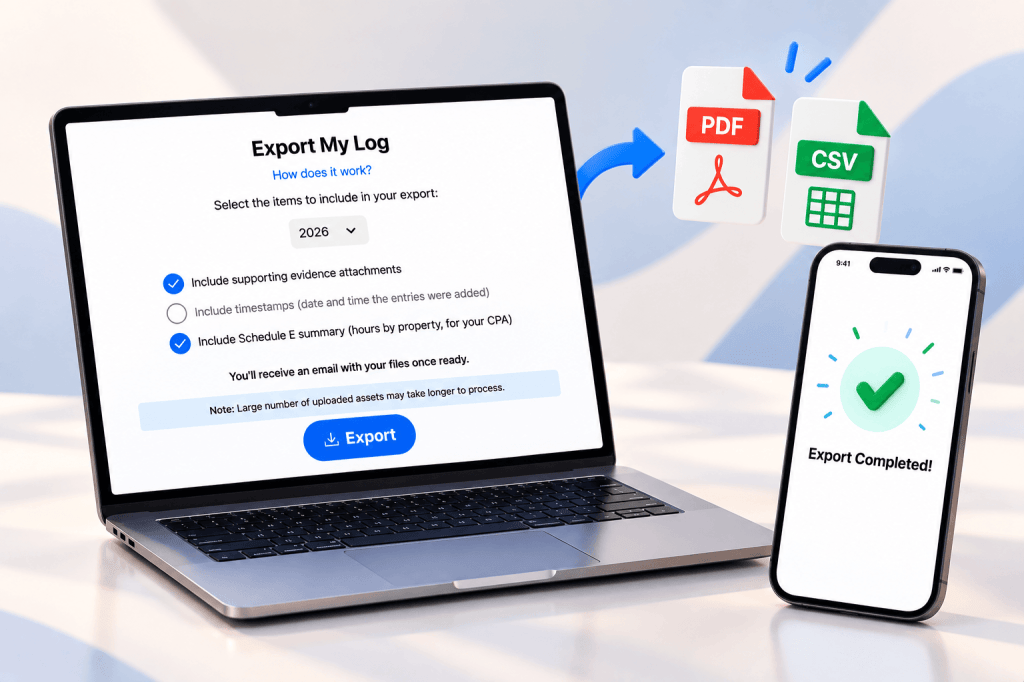
When you need to share your records, open Settings → Export My Log and select the tax year.
You can choose whether to include supporting evidence attachments, timestamps, and a Schedule E summary.
The download is a single ZIP for the selected tax year. Inside, depending on your activities and the options selected, you’ll find:
ltr_entries.csvandltr_entries.pdf: your long-term rental entriesstr_entries.csvandstr_entries.pdf: your short-term rental entriesentries.xlsx: an Excel workbook with your activity tablesproperties.csv: your property list and addressesmedia/: supporting files you’ve attached, when selectedschedule_e_summary.pdf: an optional summary organized by property
You can see the complete breakdown on the CPA-ready Export feature page.
The Schedule E summary is not a completed Schedule E. REPSLog doesn’t track all of the information required to prepare your tax return, including items such as rental income, expenses, depreciation, and rental days.
Your CPA may therefore request additional information beyond anything contained in REPSLog.
Share the format your CPA prefers
Different CPAs work differently.
Some may prefer a PDF they can quickly review. Others may want a CSV or Excel workbook so they can sort, filter, or calculate totals themselves. Some may want only a summary unless additional documentation is needed.
Instead of trying to guess, ask your CPA what they would like to receive.
REPSLog gives you several formats so you can provide your activity records in the way that’s most useful to them.
Timestamps help show when your records were created
When exporting your log, you can choose to include timestamps showing when entries were created and updated.
These timestamps provide additional context about when your records were entered, rather than showing only the date on which an activity occurred.
That’s one reason it’s useful to keep your log updated throughout the year instead of trying to recreate an entire year’s activities later.
For more on maintaining your records throughout the year, see How to Keep a Contemporaneous Log That Survives an IRS Audit.
Before you export: review your log
Before sending anything to your CPA, review your Hours Dashboard and activity log.
The Hours Dashboard lets you review your hours by property, category, year, and tracking goal.
Check that activities are assigned to the correct properties, participants are identified correctly, and your entries contain enough detail for you to understand what work was performed.
You can also use Entry Log Filters to review activities by date range, property, participant, and category and see the corresponding hours.
Remember, however, that REPSLog helps organize and document your activities—it doesn’t determine what your CPA needs to prepare your specific tax return.
How to run the export
- Open Settings → Export My Log.
- Choose the tax year.
- Select whether you want to include supporting evidence attachments, timestamps, and the Schedule E summary.
- Tap Export My Log.
- Once the export is ready, download the ZIP and share the relevant files with your CPA if they request them.
For screenshots and step-by-step instructions, see How to Export/Download Your Log into a CSV File.
Premium users can also invite their CPA through Team Access with Read Only access, allowing them to view the account and export records without being able to modify them.
Good to know
- Export is available on every REPSLog plan, including Free, on iPhone, Android, and the web app.
- Up to 10 exports can be generated per day.
- Download links expire after 7 days.
- Each export covers one tax year.
- Short-term and long-term rental entries are exported separately when applicable.
- Deleted entries aren’t included.
- Hidden categories and participants still appear on entries where they were used.
- Someone with access to your account can run an export.
- No AI is involved in generating the export itself.
Most importantly, your REPSLog export is your activity record—not a complete tax-return package.
Your CPA may require additional records or information based on your properties, activities, elections, tax positions, and their own procedures.
Frequently asked questions
Do I have to send my REPSLog log to my CPA?
Not necessarily.
Your hours log isn’t something that is automatically filed with your tax return. Some CPAs may want to review your detailed log before preparing or signing your return, while others may ask only for certain totals or information.
Ask your CPA what they want you to provide.
If my CPA doesn’t ask for the log, why should I keep one?
Your detailed records may become particularly important if you ever need to substantiate your participation and activities during an IRS examination.
Keeping the records as you go also avoids having to reconstruct your activities later.
What format should I give my CPA?
Ask them.
REPSLog provides PDF, CSV, and Excel formats so you can share your activity records in whichever format your CPA prefers.
Does the REPSLog export contain everything my CPA needs?
No.
REPSLog is designed to document your real estate activities and hours. Your CPA may need additional information that isn’t tracked by REPSLog, such as rental days, average guest stays, personal-use days, income, expenses, depreciation, elections, or other tax information.
Exactly what is required depends on your situation, so your CPA or tax professional should tell you what additional information they need.
Is the Schedule E summary a filled-in Schedule E?
No.
It organizes certain REPSLog information by property but doesn’t contain all of the information necessary to prepare Schedule E or your tax return.
Can my CPA log in and pull the export themselves?
Yes. On Premium, you can invite them with Read Only access through Team Access. Read Only users can view and export your records but cannot change anything.
Why should I include timestamps?
Timestamps show when an entry was created and updated in REPSLog, in addition to when the underlying activity occurred.
That can help document that records were maintained throughout the year rather than reconstructed later.
Can I export more than one year?
Yes, but one year at a time. Run a separate export for each tax year you need.
Related reading
- How an Investor Friendly CPA® and REPSLog Work Together
- REPS Grouping Election Statement: Template and Example
- How to Keep a Contemporaneous Log That Survives an IRS Audit
The bottom line
You don’t need to guess what your CPA wants.
Keep a detailed record of your real estate activities throughout the year, and ask your CPA what they need from you when it’s time to prepare your return.
Your CPA may want to review your log before preparing or signing your return—or they may have a completely different process.
If they want your activity log, a summary, or supporting documentation, REPSLog makes it easy to export and share your records.
And if you ever need to substantiate your activities later, you’ll already have an organized record instead of trying to reconstruct it after the fact.
Try REPSLog free for 14 days on iPhone, Android, or the web app.
This article provides general information and is not tax advice. Documentation and tax-return requirements depend on your individual circumstances. Ask your CPA or tax professional what records and information they need from you.