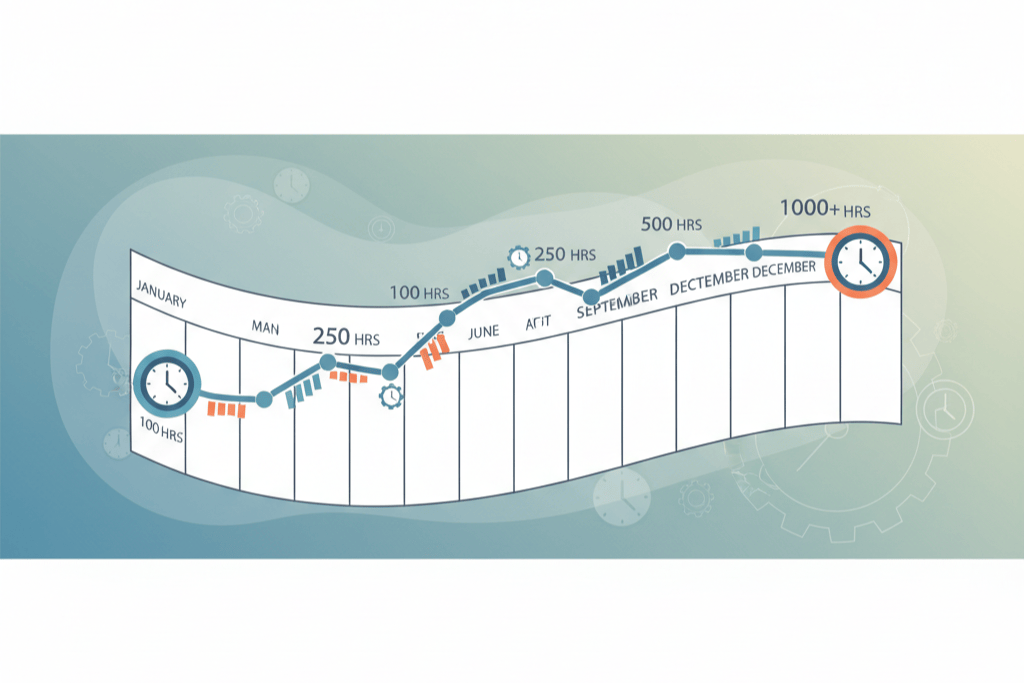
“How many hours do I have?” sounds like one question. It is at least three, because each test counts differently. The 750-hour REPS test counts only you. The 500-hour material participation test counts you and your spouse together. The 100-hour test is per property, and it only passes if nobody else put in more than you at that property. Ask a spreadsheet and you get one total that answers none of them. This post explains what each counter needs, and how the REPSLog dashboard shows the right one.
The counters, and who they count
750 hours, more than half. To be a real estate professional, one spouse alone must spend more than 750 hours and more than half of their working time in real property trades or businesses. The 750-hour rule post covers what counts; the more-than-half side needs your non-real-estate hours too, which is its own logging job if you have a W-2.
500 hours. Material participation in your rentals, the first of the seven tests. Your spouse’s participation counts as yours here, whether or not you file jointly. Investors who group their rentals need 500 across the group.
100 hours, and no less than anyone else. The test most STR hosts use, per listing: at least 100 hours in the year, and more than any other individual (your cleaner, co-host, manager). That comparison is why contractor hours must be tracked even though they never count for you.
What the dashboard shows
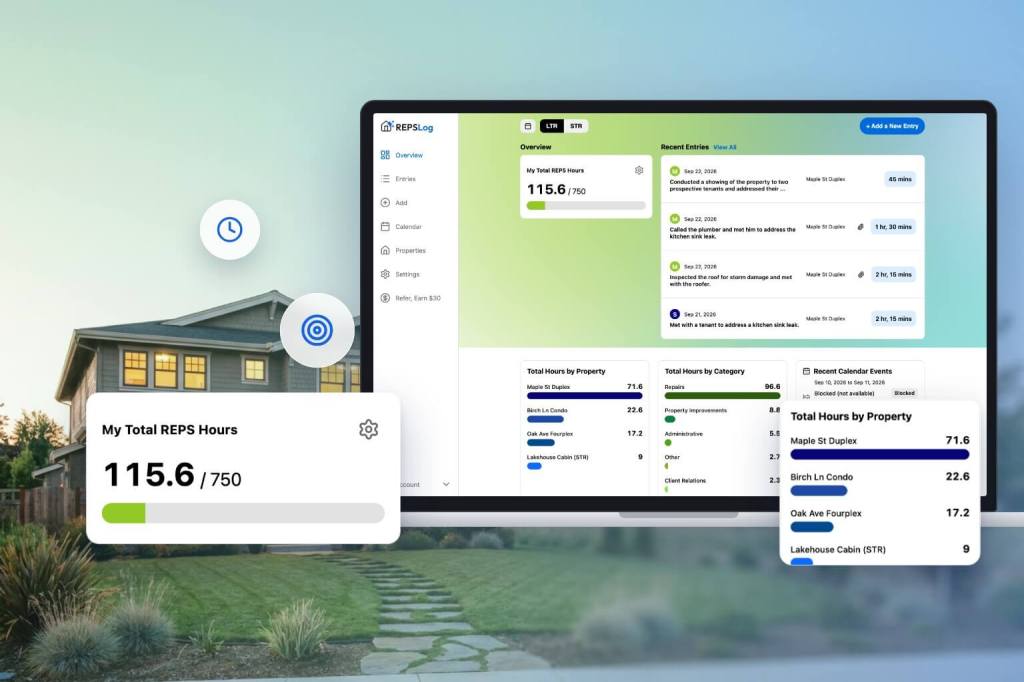
The top of the REPSLog dashboard is the Overview card. In the default 750-hour mode it is titled “My Total REPS Hours” and shows your hours, a slash, the goal and a progress bar, counting only entries performed by Myself. Switch the goal to 500 and the card becomes “Total Material Participation Hours” with Myself and Spouse rows added together. Switch to 100 and the Overview lists one row per property, each with its own bar; tap the chevron on a row and it expands to a breakdown by participant, so you can see whether your hours (with your spouse’s) are below a cleaner or manager you also logged.
Short-term rentals have their own view. Every listing you added as a Short Term Rental gets its own row against 100 by default, with the same participant breakdown, and the STR hours never roll into the REPS total. Hosts who group their STRs for material participation can switch the STR goal to 500, which measures every row against 500 with the combined total on top.
Under the Overview, two stats cards break the same year down: Total Hours by Property (one bar per long-term rental, sorted, with an Unassigned row for entries with no property) and Total Hours by Category. Every number is a live total for the selected year, updated as entries are saved, edited or deleted on any device. A calendar button appears once your entries span more than one year, so you can look at last year against the same goal.
Changing the goal changes nothing else
The goal is a display setting, not a filter. Choosing 750, 500 or 100 never edits, hides or deletes an entry, and you can switch as often as you like, on any device; the choice is saved to your account. The tracking goals page has each option and the exact counting rule behind it. Which test applies to you is a question for your CPA; the dashboard’s job is to make sure that whichever one it is, the number is already there.
Per property is the whole point
Material participation is tested per activity, and a rental is an activity unless you group. So the split by property is not a nice-to-have: it is what lets your CPA place each rental against the right test. In REPSLog every entry has a property (or Unassigned), and each property is marked LTR or STR when you add it, which is what routes its hours to the right counter. How many properties you need, and whether grouping helps, is covered in this post.
How to set your goal
- Open the Overview and tap the gear icon on the hours card.
- Long-term rentals: choose Reach 750 Hours by Myself, Reach 500 Hours (includes spouse), or Reach 100 Hours, And No Less Than Anyone Else.
- Short-term rentals: use the LTR / STR toggle next to the logo, tap the gear, choose 100 (per listing) or 500 (grouping election view).
- Tap the chevron on any property row to see the breakdown by participant.
- Use the calendar button to review a previous year.
Screenshots of each mode: How to Adjust Your Tracking Goal in REPSLog and Understanding Your REPSLog Dashboard.
Good to know
- The dashboard and every goal are on every plan, including Free. No AI is involved in the totals.
- Totals are per calendar year by the date each entry was performed. Backdated entries land in the year you set.
- The bar caps at 100% visually; the number keeps counting past the goal.
- Read-only team members see the dashboard without the add-entry and timer controls.
- Before your first entry, the stats cards show sample data marked EXAMPLE, which is not counted anywhere.
Frequently asked questions
Does REPSLog count my spouse’s hours toward 750?
No. The 750 counter counts Myself only, which is the rule. Spouse hours are added in the 500 mode and in the per-property views.
Why does my STR listing not add to my REPS total?
Because the STR loophole is a separate mechanism from REPS. STR hours show on the STR view, per listing, against their own goal.
Can I see last year’s total?
Yes. A calendar button appears next to the logo once your entries span more than one year.
Does switching goals change my entries?
No. It changes which counter is displayed. Nothing is edited, hidden or deleted.
How do I know if I am on pace?
The dashboard shows logged versus goal for the year; the difference is what is left to log before December 31. Pacing is yours to judge.
Related reading
- How many hours do you really need to qualify for REPS?
- Can you qualify for REPS with a full-time job?
- STR loophole: the 100-hour or the 500-hour test?
Try REPSLog free for 14 days on iPhone, Android or the web app.
This article is general information, not tax advice. Which test applies to each property is a question for your CPA.