Who did the work is one of the four things every entry needs, and it is the one investors get wrong most often, because the answer changes depending on which test you are looking at. Your spouse’s hours count for one test and not another. Your cleaner’s hours never count for you, yet you cannot pass the STR loophole’s 100-hour test without knowing them. This post lays out the rules in plain terms and shows how the Participants field in REPSLog keeps each person’s hours on the right counter.
Part of our STR loophole series: the loophole as a whole is in our STR loophole guide, and the test itself in the 100-hour material participation test.
The rules, test by test
The 750-hour REPS test is individual. To qualify as a real estate professional, one spouse must personally spend more than 750 hours, and more than half of their working time, in real property trades or businesses. Spouses cannot combine hours to reach 750. The spousal hours post goes through the detail.
Material participation (the 500-hour test, the 100-hour test and the rest of the seven) is different: participation by your spouse counts as your participation, whether or not you file jointly. That is what makes the spouse strategy work for physician households and other high-earner couples, covered in REPS for doctors.
Everyone else (cleaners, contractors, co-hosts, property managers) is not you. Their hours never count toward your total. But for the STR loophole’s 100-hour test, you must participate more than any other individual, so if your cleaner puts in 120 hours at a listing and you put in 100, you fail on that listing. Why you must track contractor hours explains the comparison in full.
How Participants work in REPSLog
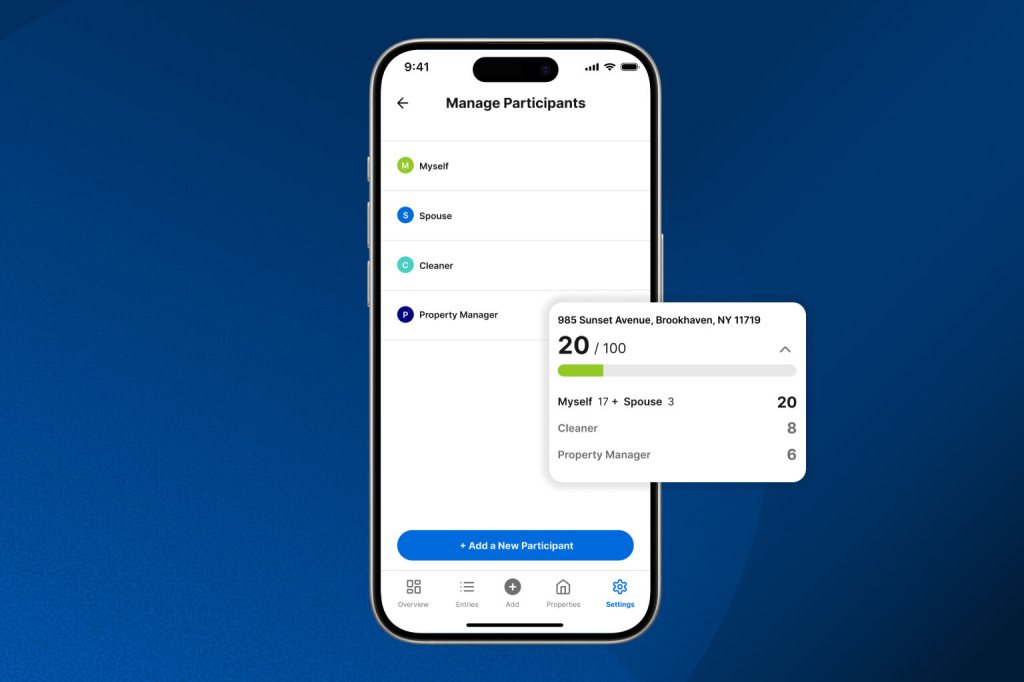
Every entry has a required field, Who Performed the Activity?, with Myself pre-selected. REPSLog ships with three built-in participants, Spouse, Cleaner and Property Manager, and you add your own (a co-host, a handyman, an assistant) from Settings, Manage Participants. Each entry row in your log shows the participant as a colored circle with their initial, the log filter can show one or more participants, and the export has a Who Performed the Activity column.
The counters on your dashboard follow the rules above:
- 750-hour REPS counter (My Total REPS Hours): only entries performed by Myself. Pick anyone else on a long-term rental entry and the form tells you “Does not count towards your Total REPS hours.” The entry is still saved and exported.
- 500-hour material participation counter: Myself and Spouse added together, with a breakdown of each.
- Per-property 100-hour view and STR properties: Myself and Spouse combined per property. Other participants appear in the breakdown with their own hours but are not added to your total.
That last line is the STR comparison on screen: your hours and your cleaner’s hours side by side under each listing, which is what STR Loophole Tracking is for. Details of the field and the counters are on the Participants page.
Two ways for a spouse to log their own hours
If your spouse does real work at the properties, their entries should be in the same log, tagged Spouse. They can sign in to the same account on a second device, or, on Premium, you can give them their own login with Team Access: invite their email, choose Full Access, and every entry they log lands in your entry log, dashboard and exports exactly like one you typed. The same invitation works for a co-host, a property manager or your CPA, with Read Only for anyone who should see but not change. Logins are separate from participants: you can log hours for people you never invite, and an invited person still picks who performed each entry.
How to set up participants
- Open Settings, then Manage Participants.
- Spouse, Cleaner and Property Manager are already there. Tap + Add a New Participant for anyone else and type a name.
- Drag to reorder (the order here is the order in the entry form picker), tap the eye to hide someone you no longer use, tap the star to change who new entries default to.
- On each entry, set Who Performed the Activity. AI Entry Autofill picks it up from text like “my wife handled the showing”.
Screenshots are in the Help Center article How to Manage Your Categories and Participants.
Good to know
- Plan limits count only custom participants: Free includes up to 10, Starter and Premium are unlimited. The three built-in ones are on every plan.
- Works the same on iPhone, Android and the web app.
- Deleting a custom participant reassigns their entries to Myself; it does not erase them. Check your counters afterwards. Hiding keeps history.
- Team Access is Premium for the account owner; invited people only need a free REPSLog account.
- Airbnb and Vrbo hosts: Cleaner and Property Manager are built in, and a co-host is a custom participant you add once.
Frequently asked questions
Can my spouse and I combine hours for REPS?
Not for the 750-hour test; one spouse must reach it alone. For material participation, spouse hours count as yours. REPSLog’s counters apply exactly that split.
Do my cleaner’s hours count toward the STR loophole?
Not toward your total. But you need them recorded to show you participated more than any other individual at that listing. Log them with Cleaner as the participant.
What happens if I tag a long-term rental entry to someone else?
The entry saves and exports normally, and the form tells you it does not count toward your REPS total.
Can my spouse have their own login?
Yes, on Premium, through Team Access. Their entries land in the shared log, tagged with whoever performed the work.
Does my property manager’s work count for me?
No. Their hours are theirs. Whether hiring a manager affects your ability to materially participate is a question for your CPA; see REPS with a property manager.
Related reading
- REPS for married couples: one qualifies, both benefit
- STR loophole: the 100-hour or the 500-hour test?
- The 7 material participation tests
Try REPSLog free for 14 days on iPhone, Android or the web app.
This article is general information, not tax advice. Whose hours count, and for which test, is a question for your CPA.